The messaging system of INSA Rouen Normandie operates on the academic infrastructure of the Normandy academy. The addresses follow the format [email protected], but the incoming and outgoing servers are those of the ac-normandie network. Configuring this INSA Rouen messaging on a smartphone requires knowledge of the correct technical settings, including the protocol, ports, and type of encryption expected by the servers.
SSO Authentication and ac-normandie Messaging: The Mechanism to Understand Before Configuring
INSA Rouen Normandie relies on a centralized authentication system (SSO) shared with other institutions in the Normandy academy. When a student or staff member logs into the webmail via a browser, the redirection goes through a single authentication page that generates a session token.
On mobile, this SSO authentication chain can break if certain browser settings interfere. The blocking of third-party cookies or the disabling of JavaScript prevents the SSO page from correctly transmitting the token to the webmail. This is a common cause of blockage that many users mistakenly attribute to an incorrect password.
The most reliable solution remains to bypass the webmail browser by directly configuring an IMAP account in the phone’s native mail client. This method removes the dependency on the browser SSO and provides real-time notifications, which are sorely lacking in the web interface on a small screen. A detailed guide allows you to configure the INSA Rouen messaging on mobile in just a few minutes with the correct settings.
IMAP and SMTP Servers ac-normandie: Exact Settings for INSA Rouen Messaging
The protocol to use for receiving is IMAP with SSL/TLS encryption on port 993. The incoming server is imap.ac-normandie.fr. For sending, the server is smtp.ac-normandie.fr, accessible on port 465 (SSL/TLS) or port 587 (STARTTLS).

The login ID usually corresponds to the full email address ([email protected]). The password is that of the academic account, identical to the one used to access the ENT or the webmail browser.
Here are the settings to enter in the mail client:
- Incoming server (mail): imap.ac-normandie.fr, port 993, SSL/TLS security
- Outgoing server (mail): smtp.ac-normandie.fr, port 465 (SSL/TLS) or 587 (STARTTLS)
- Username: the full email address in the format [email protected]
- Authentication required for the SMTP server: enabled, with the same credentials as for receiving
SSL/TLS encryption is not an optional feature. The ac-normandie servers enforce this level of security, and any attempt to connect without encryption will be refused.
Configuration on Android and iPhone: Differences Between Mail Clients
On Android, the Gmail app allows you to add an external account via the “Add Account” menu and then “Other.” You need to select IMAP (not POP3) and manually enter the parameters listed above. Gmail sometimes attempts to automatically detect the configuration but often fails with academic servers. It’s better to go directly to manual configuration.
On iPhone, Apple Mail offers a similar path in Settings > Mail > Accounts > Add Account > Other. After entering the address and password, the app requests the incoming and outgoing servers. You need to fill in both screens with the ac-normandie parameters, without letting Apple Mail guess.
Outlook for mobile also works, but adds an intermediate layer: the app routes emails through Microsoft servers for push synchronization. Some academic institutions block this behavior. If the connection fails in Outlook, testing first with the phone’s native mail client can help isolate the problem.
Connection Errors on Mobile: Three Technical Causes to Check
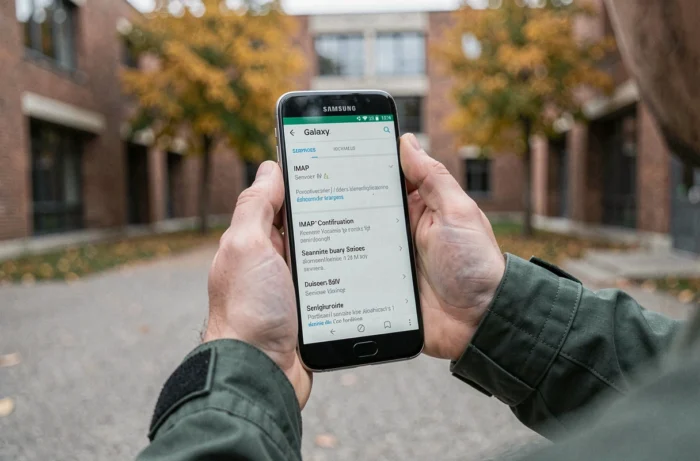
A connection failure does not always mean that the settings are incorrect. Three technical causes specific to smartphones lead to most blockages.
The first is the proxy of the institution’s Wi-Fi network. On campus, the Wi-Fi network may allow regular web traffic but block IMAP or SMTP ports. Switching to 4G/5G during the first synchronization can help determine if the network is the issue.
The second concerns the date and time on the phone. A discrepancy, even of a few minutes, between the system clock and the server prevents the SSL certificate from being validated. The automatic date and time setting should be enabled in the phone’s settings.
The third is related to passwords containing special characters. Some mail clients on Android improperly encode characters like @, #, or &. If the academic password contains one of these characters and the connection fails for no apparent reason, temporarily changing the password from the ENT portal (using only letters and numbers) may resolve the issue.
IMAP Synchronization and Battery Management on Smartphone
Once the account is configured, the IMAP protocol synchronizes remote folders with the mail client. Emails read, deleted, or moved on the phone are also reflected on the server, and vice versa.
The synchronization frequency setting deserves attention. Checking every fifteen minutes strikes a good balance between responsiveness and battery life. Push mode (instant notification) consumes more battery and maintains a constant connection to the server, which can be problematic on unstable networks.
On Android, battery optimizations can cut off background synchronization. To receive academic emails without delay, the mail app should be excluded from battery optimization in the system settings. On iPhone, this issue does not arise with Apple Mail, which natively manages background synchronization.
INSA Rouen messaging on mobile, once correctly configured with the ac-normandie servers and SSL/TLS encryption, operates stably over time. Keeping the automatic date and time setting enabled remains the simplest maintenance gesture to avoid unexpected disconnections related to certificate expiration.